
How To
How to Create Breakout Rooms In Microsoft Teams

- December 10, 2020
- Updated: July 2, 2025 at 4:16 AM
You may be familiar with lectures, classes, or conferences where the host sends you into different groups to discuss topics or selective points. Well, Microsoft Teams has created a similar feature in the virtual world. You can now create breakout rooms for your online members to talk about critical points, creating the proper atmosphere that stimulates sound strategies.
Let’s take a look at this feature and how you can use it to your benefit.

How can you create Microsoft Teams breakout rooms?
You’re all set, and the students are eager. It’s time for you to create an online venue so that they can chat about the topic at hand. It’s vital that you create channels for all planned breakout rooms before the meeting begins so that you don’t delay the session.
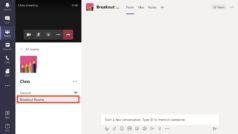
Here are the steps you need to follow:
- Click on the menu icon and choose ‘Add Channel’ for each different group;
- Begin your meeting or training session;
- When ready, inform members in which units you’re placing them;
- Pick ‘Teams’ in the left panel;
- Select the relevant breakout room and click ‘Meet Now’ on the board;
- Create a title, and select ‘Meet Now’ again when done;
- Repeat steps 5 – 6 for more rooms;
- Choose the phone icon to end each breakout room when completed.
How many breakout rooms can you create?
You can host up to four virtual meeting venues simultaneously. However, you can only attend one at a time.
While you’re switching between the rooms, the other three will remain on hold. You’ll need to join each on separately, so ensure you keep track of where each member is located.
How do you join a breakout room in Microsoft Teams?
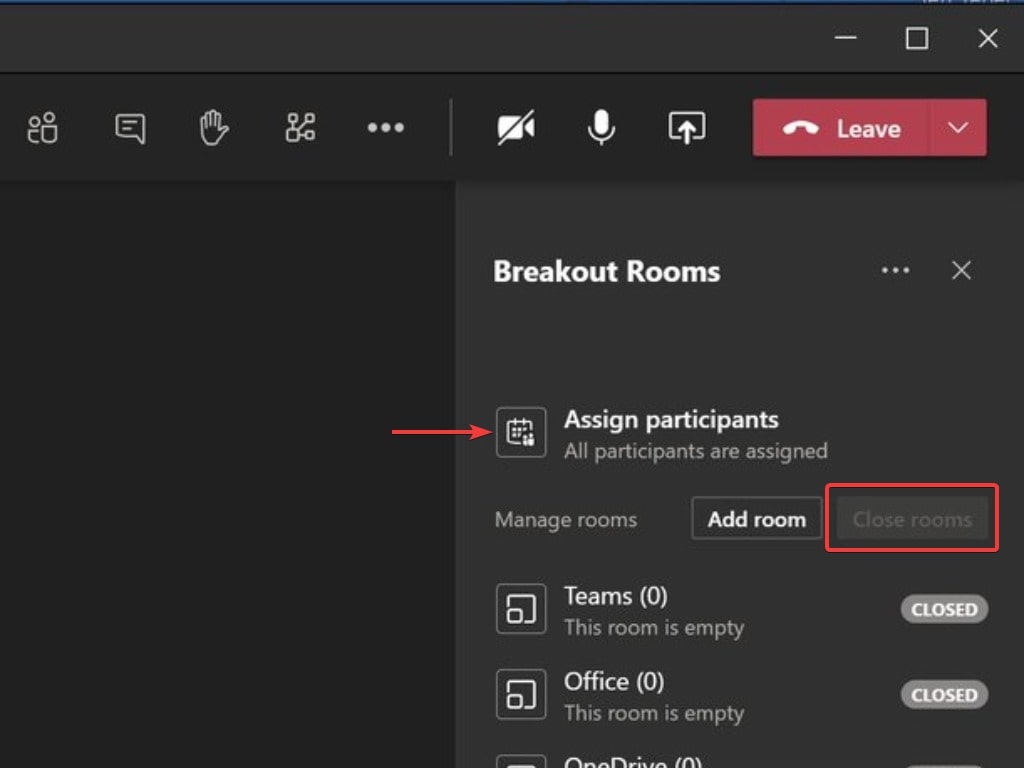
You may be one of the students or members attending the Teams meeting. Even if you’re the lecturer or host, it’s handy to know how to join the correct online venue. If you’re already in the session, you can select the relevant breakout room and click on ‘Join’ to enter. The channel creator will need to approve access.
Take your strategy sessions to the next level
While other programs like Skype and Zoom may not have such detailed functionality, Microsoft Teams leads the way for the ultimate experience for online meetings. Please feel free to share with us your experience with this excellent tool.

.png)
Latest from Softonic Editorial Team
You may also like
 News
NewsAdobe Stock: Unlock Your Next TikTok Hit with Millions of Creative Assets
Read more
 News
NewsWarner has already chosen between Netflix and Paramount (again), and the decision will surprise many
Read more
 News
News"I couldn't do something similar to what Martin Scorsese does." DiCaprio refuses to direct for an obvious reason
Read more
 News
NewsWe all love the Zelda song, but it was composed in a hurry to replace another much more well-known theme
Read more
 News
NewsThe best thing that could happen to GTA 6 was that it got delayed, or so says the creator of The Elder Scrolls 6
Read more
 News
News'M3GAN 2.0' has failed so much that it has even canceled the release of its spin-off
Read more